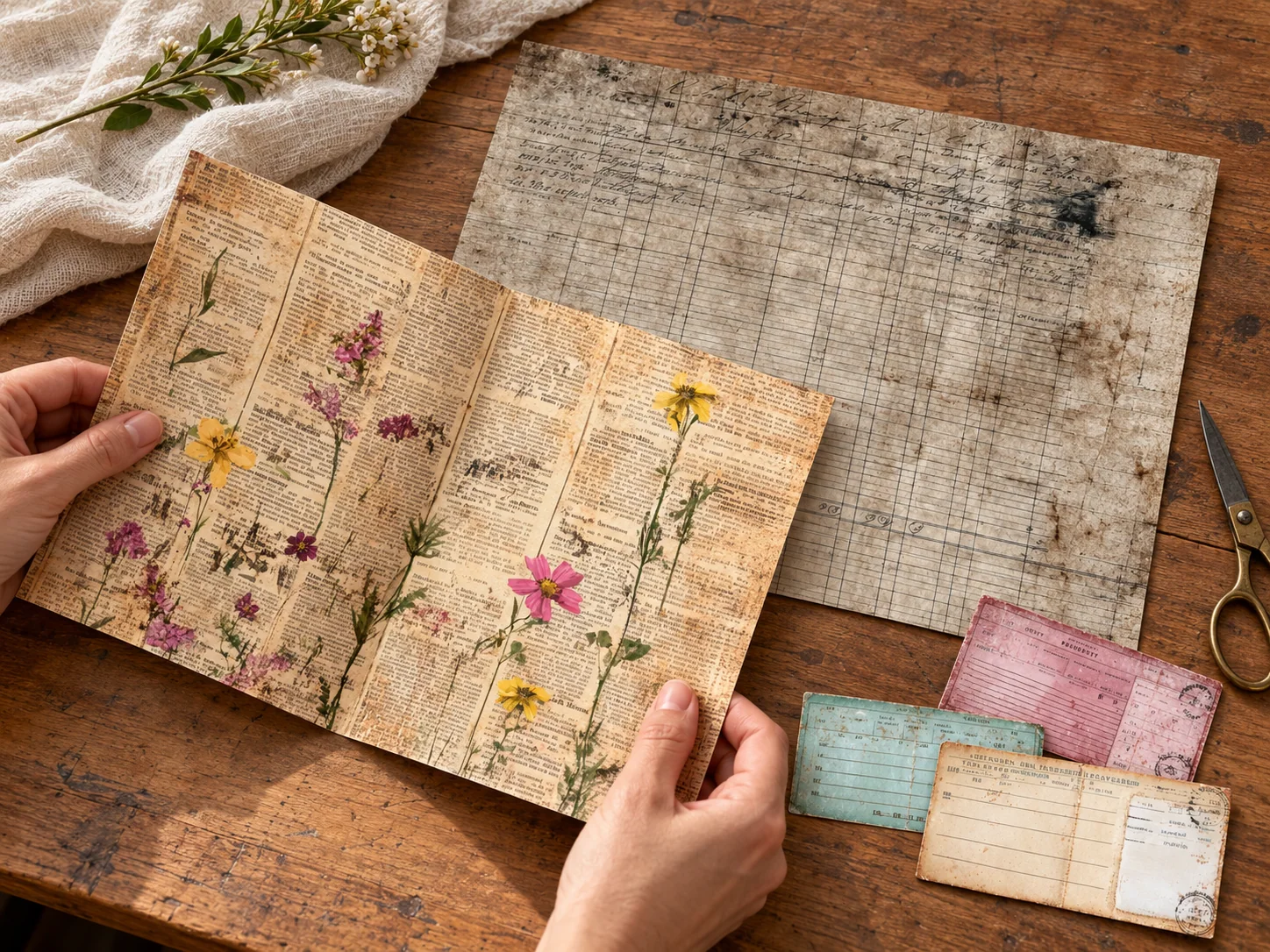
Start with one test sheet when printing junk journal pages at home. Measure it against your book, try your usual pen on a spare edge, then fold the sheet to see how it feels. You can adjust the scale or paper setting before printing a whole collection.
The right settings depend on your file, paper and printer, as well as the size of the project.
Open the purchased file, not the shop preview
Download the original artwork using the instructions supplied with your order. A shop image may be a collage, a compressed preview or a styled example. Printing a screenshot can give you the wrong proportions and less detail.
Check whether the file is a JPG, PDF or another format before opening it. If a PDF contains download links, follow those instructions to reach the artwork; the access document itself may not be the printable page. Our Download Help page explains the store’s delivery options.
Match the paper size and orientation
Choose the sheet size you have actually loaded, then check portrait or landscape in the print preview. US Letter and A4 are different sizes, so switching between them can introduce scaling or cropping. Use the dimensions in the individual product listing rather than assuming every collection is identical.
For a PDF, Adobe explains the difference between Actual size, Fit and Shrink. Actual size keeps the original scale but may cut off content outside the printable area. Fit reduces or enlarges the page to the printable area. Shrink oversized pages reduces pages that are too large but leaves smaller ones at their original size. Image-printing applications may use different labels, so inspect the preview before printing.
Why is there a white border?
Many printers leave a non-printable margin. Borderless printing is available only on supported printers and paper settings. Epson’s borderless guidance for the XP-520 illustrates why the paper size and paper type both matter; check the equivalent instructions for your own model.
Borderless settings may enlarge the image slightly and crop its edges. If a label or decorative border is near the edge, check that it survives the test print. Without borderless support, trim the white margin and use the smaller sheet as a layer, or print on a larger supported sheet and trim to your required size.
Two sample prints for checking page size
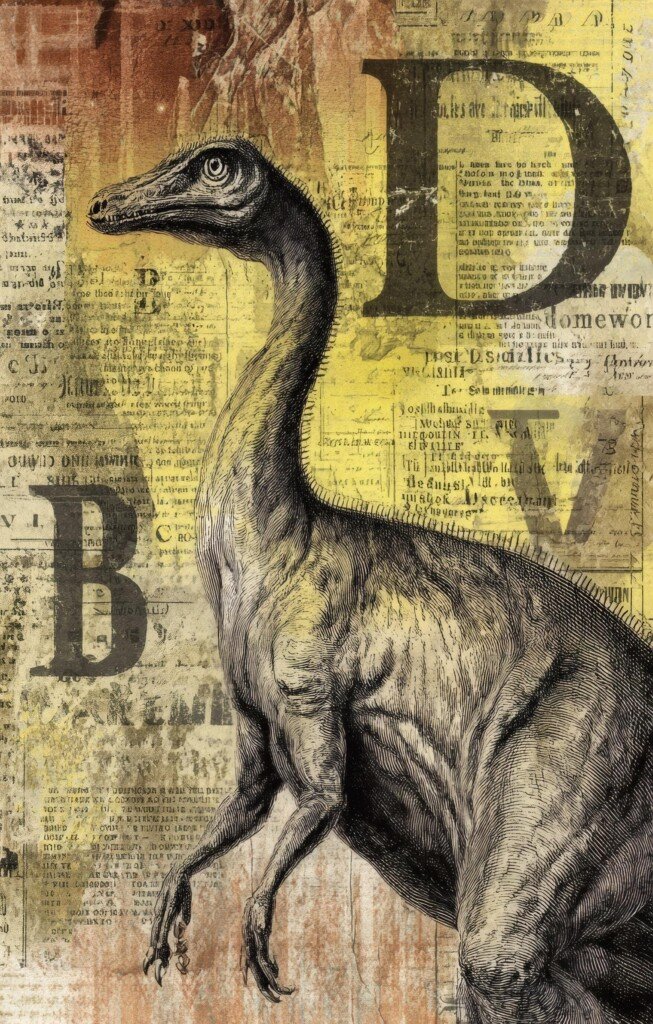
Measure an individual portrait page
The dinosaur listing specifies individual portrait pages at 5.4 by 8.5 inches. Do not assume a portrait file must fill an entire Letter sheet. Print at the intended size first, measure it and compare it with your notebook. Enlarging it to fill the sheet changes its size and can affect detail.
Actual listing preview. Digital download; print and finish it yourself.
Test the margins on a Letter-size background
The mushroom listing specifies 2550 by 3300 pixels, corresponding to 8.5 by 11 inches at 300 DPI. Use it to check portrait orientation and whether the outer design is clipped by your printer margins. Try writing on the print before choosing that paper for the whole journal.
Actual listing preview. Digital download; print and finish it yourself.Choose paper by how you will use it
For folded pages, begin with a flexible paper that turns easily. For a removable tag or card, try a firmer paper within your printer’s stated limits. A matte surface is worth testing when you want to write over the design. Coated paper may change how ink and pens behave.
Use Vintage French Ledger Junk Journal Pages to test handwriting over a patterned background. Try Vintage Newspaper Wildflower Journal Papers for a folded or layered decorative page. A Vintage Library Card is useful for checking whether small details remain clear at the scale you want.
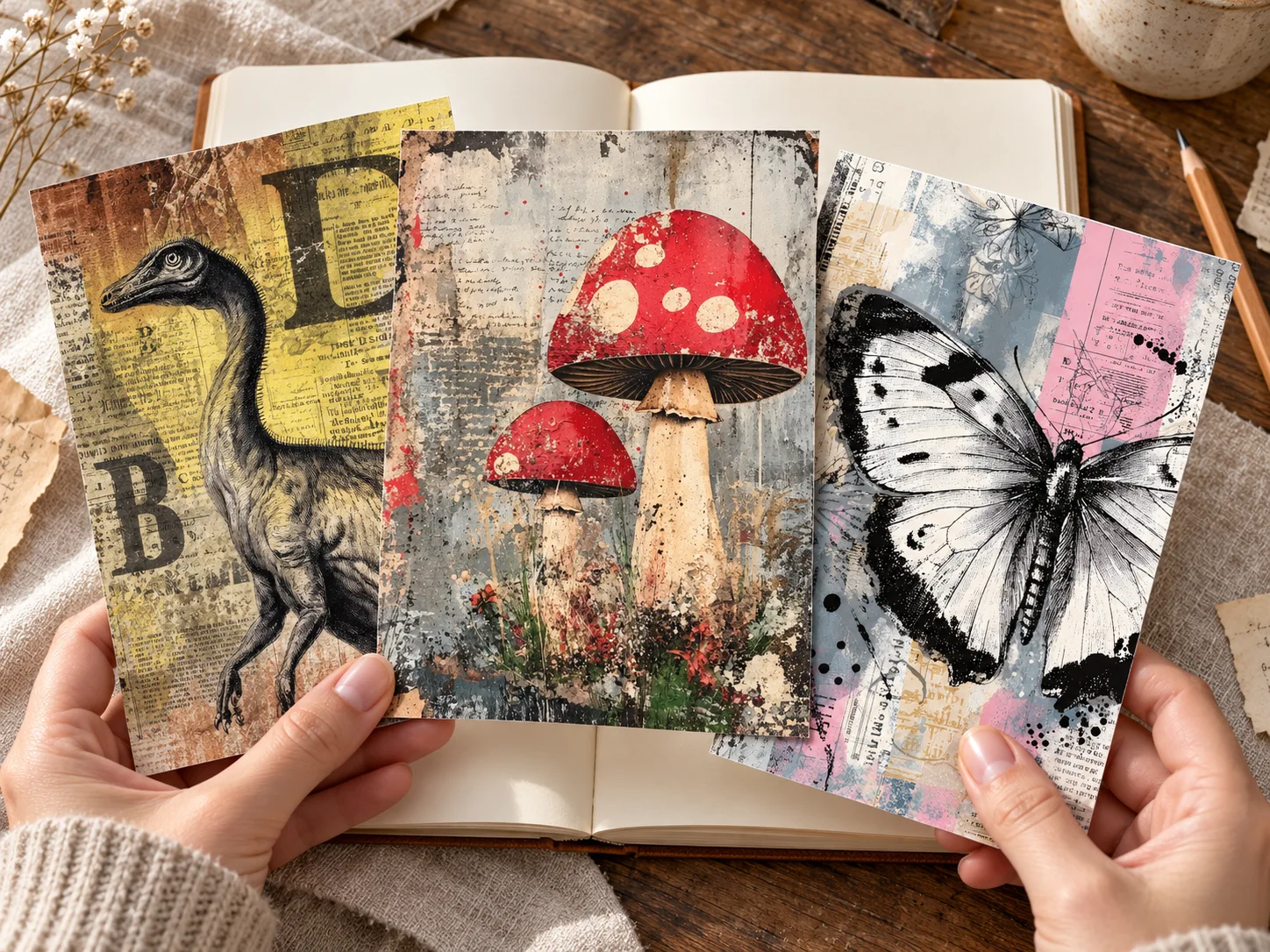
Try the print in your page layout
Fold the print and arrange it with your inserts. Make sure you still have enough room to write before printing more sheets.
Fold a landscape sheet carefully
Let the print dry before folding. Bring the two short edges together, line up the corners and press the centre crease. A single 11 × 8.5-inch landscape sheet folded in half makes a closed size of about 5.5 × 8.5 inches before trimming. It remains one sheet, even though the fold creates two panels on each side.
If you want to print on both sides, first check that your paper is suitable. Test the feed direction and orientation with a marked scrap sheet so the second side comes out the right way up.
Test cutouts and folded spreads
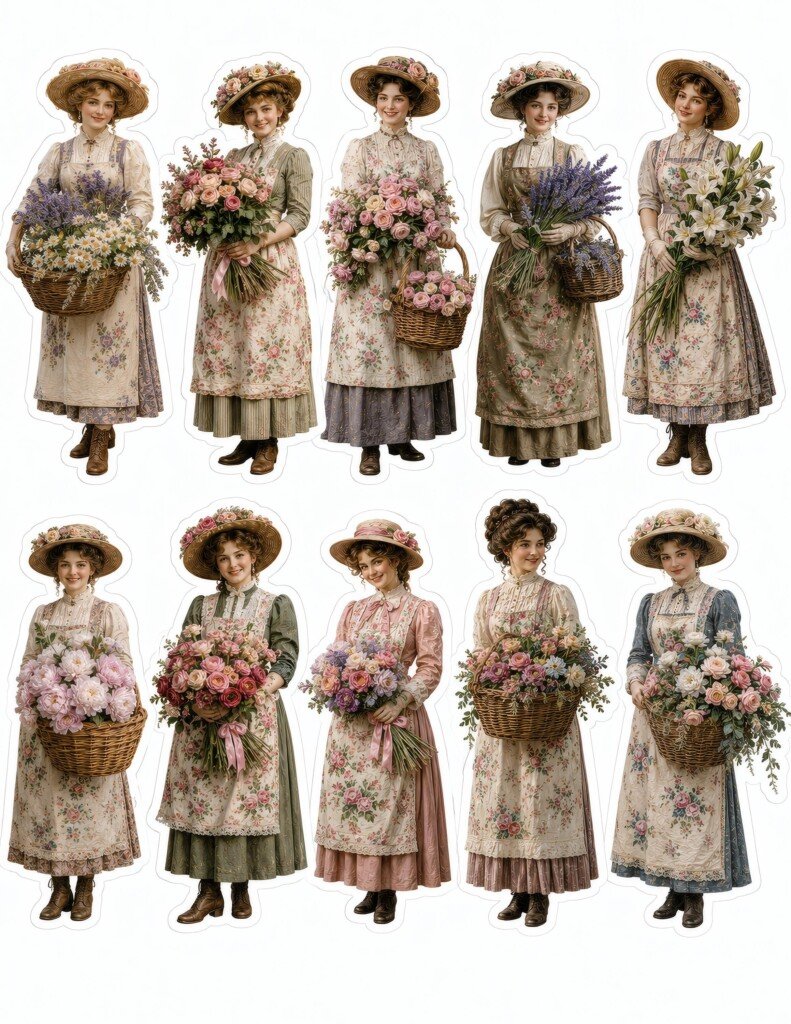
Check the smallest cutout you want to use
A cutout sheet needs a different test from a full-page background. Measure one figure after printing and hold it against the intended page. If you scale the whole sheet down, every figure gets smaller. Test the smallest detail you want to keep, especially around hats, flowers and hands.
Actual listing preview. Digital download; print and finish it yourself.
Check a landscape spread before folding
The Halloween listing gives an 11 by 8.5-inch landscape size. Fold a plain sheet first to test the closed size in your notebook. Then inspect where the artwork would fall across the crease. Folding creates two panels on each side of the sheet, but it does not add artwork to an unprinted reverse.
Actual listing preview. Digital download; print and finish it yourself.Check quality before printing more
- Look at fine lines and small decorative details for blur or banding.
- Compare the printed size with the intended pocket or notebook.
- Try the pen or adhesive you plan to use on a spare edge.
- Check drying time and whether the sheet curls.
A 300 DPI file can provide detail at its intended size, but it cannot correct a clogged printhead, unsuitable paper or an enlarged low-resolution preview. If colour looks wrong, check the paper setting and printer maintenance guidance before repeatedly printing the whole collection.
Make a note of the settings that worked
On a spare sheet, record the paper name, paper size, orientation, scale and print-quality setting. Add whether the reverse is suitable for writing. Keep that note with the original files. If a later print looks different, compare it with your test sheet and notes.


